Paste Me
A native clipboard manager for Mac, iPhone and iPad — privacy notice, support and documentation.
Paste Me for iPhone and iPad
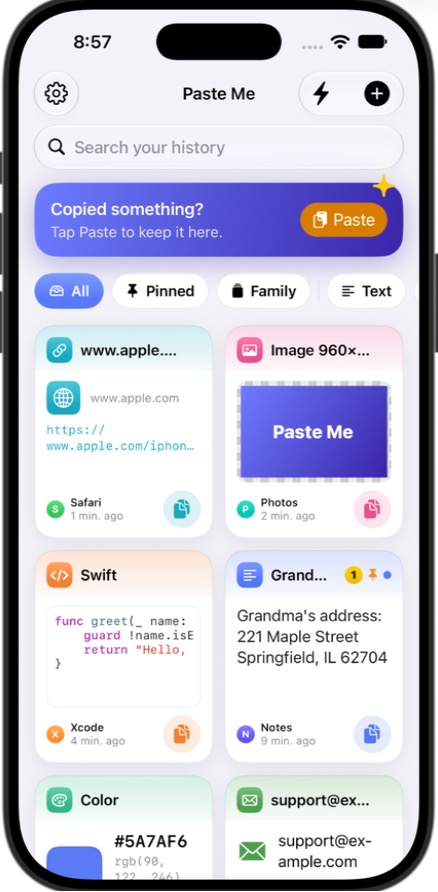
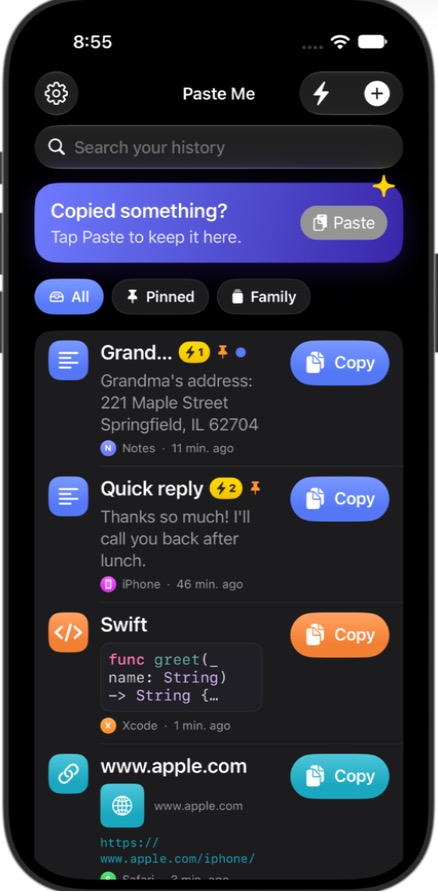
Everything you copy, kept safe and easy to find, on your iPhone and iPad. It’s the same Paste Me as on the Mac, with the same history, pins, pinboards, Quick Paste slots and “Paste As” conversions. With iCloud sync on, something you copy on your Mac shows up on your iPhone, and the other way round.
Paste Me is free: no in-app purchases, subscriptions, ads or tracking. Privacy Notice
Requirements
- iOS 17 or iPadOS 17 or later.
- An iCloud account, only if you want sync with your Mac and other devices.
Settings paths below are for iOS 18 and later (Settings ▸ Apps ▸ Paste Me). On iOS 17, Paste Me is listed directly in the Settings app.
In 30 seconds
- Copy something in any app: a message, an address, a link, a photo, some code.
- Open Paste Me and tap the orange Paste button at the top. It’s saved.
- Tap any item to copy it again. Then, in any app, touch and hold where you want it and tap Paste.
That’s it. The rest of this page is for when you want more.
Saving things
| How | When it’s handy |
|---|---|
| Paste button (top of the history) | The everyday way. It’s Apple’s own paste button, so iOS doesn’t ask for permission. |
| Save automatically when I open Paste Me (on by default) | Copy, switch to Paste Me, done. iPhone asks “Allow Paste?” the first time. To stop the question, go to the Settings app ▸ Apps ▸ Paste Me ▸ Paste from Other Apps ▸ Allow. |
| Share ▸ Paste Me | From Safari, Photos, Notes, Mail, Messages and most apps. Saves text, links and images without opening Paste Me. |
| Paste Me Keyboard ▸ Save (tray button) | Saves the clipboard without leaving the app you’re typing in. |
| Shortcuts and Siri: “Save my clipboard in Paste Me” | Put it on the Action button, on Back Tap (Settings ▸ Accessibility ▸ Touch ▸ Back Tap) or on your Home Screen. |
| Type Something New (the + menu) | Keep a reply you send often, an address or a snippet. |
| Drag and drop (iPad) | Drop text or images onto Paste Me. |
| From your Mac | With iCloud sync on, everything Paste Me for Mac saves appears here too. |
iOS doesn’t let any app read the clipboard in the background, so Paste Me never does. It only looks when you ask it to.
Using things again
- Tap an item (or its round copy button) to copy it, then paste it anywhere.
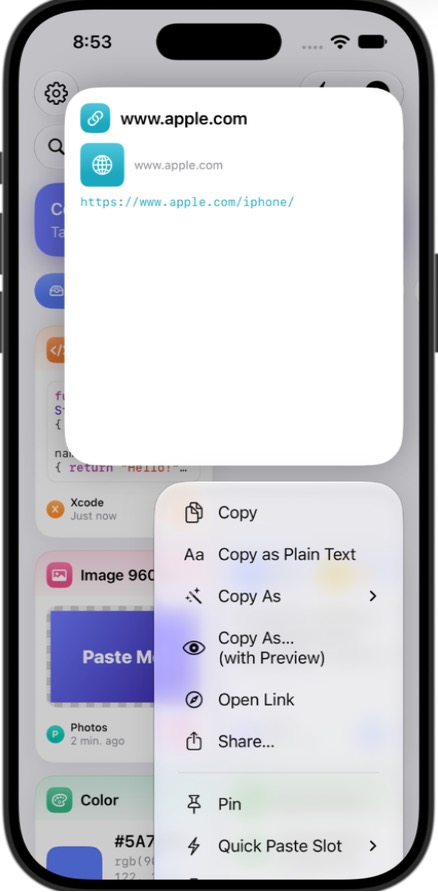
- Touch and hold an item for every option:
- Copy as Plain Text removes fonts and colors.
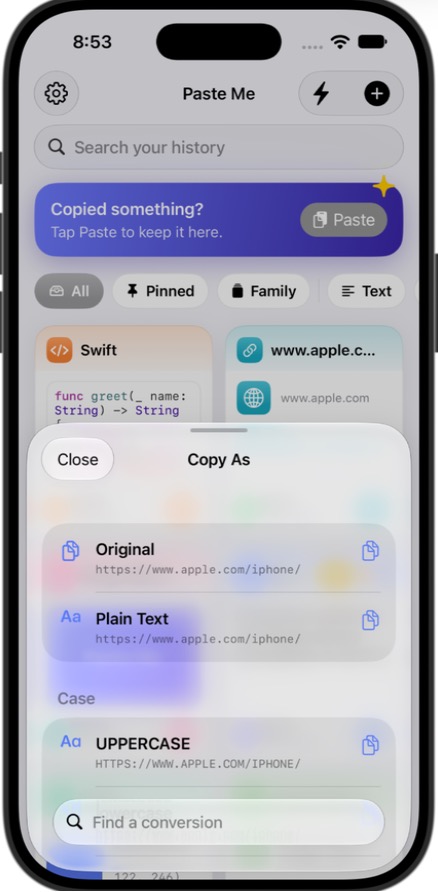
- Copy As gives you all the Mac’s “Paste As” conversions: UPPERCASE, lowercase, Title Case, Sentence case, camelCase, snake_case, kebab-case, trim whitespace, join lines, remove empty or duplicate lines, sort or reverse lines, pretty or minified JSON, URL encode/decode, Base64 encode/decode, escaped string, Markdown link, Markdown code block and quoted lines.
- Copy As… (with Preview) shows what each conversion produces before you pick one.
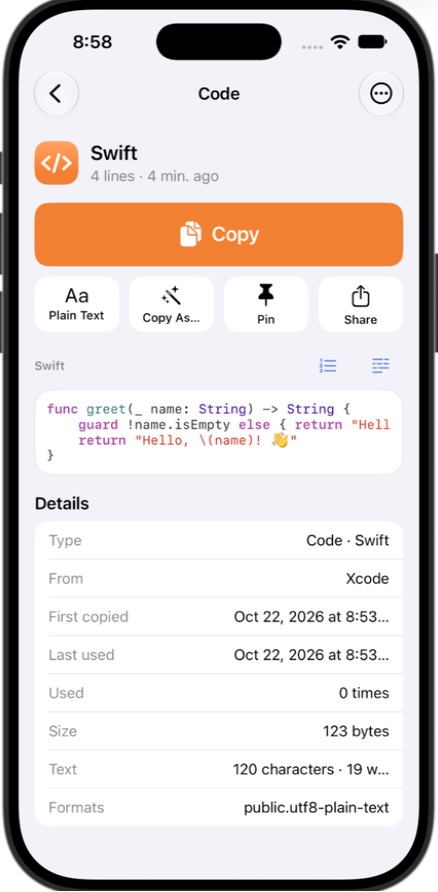
- Open Link, Share, Pin, Quick Paste Slot, Pinboard, Rename, Details and Delete.
- Deleted something by mistake? Tap Undo in the message that appears.
- On iPad, drag an item straight into another app in Split View or Slide Over.
Paste Me Keyboard
Paste Me Keyboard puts your history and Quick Paste slots right above where you’re typing. Tap an item and it’s typed in, in Messages, Mail, WhatsApp, anywhere.
Turn it on once:
- Settings app ▸ Apps ▸ Paste Me ▸ Keyboards, then turn on Paste Me.
- Turn on Allow Full Access. The keyboard needs it to see the history the Paste Me app shares with it.
- In any app, touch and hold the 🌐 globe key and choose Paste Me.
Using it:
- Recent, Pinned and Quick Paste tabs.
- Tap an item to type it. Touch and hold it to Copy it, or to Type As any conversion (UPPERCASE, JSON, Markdown…).
- Save (tray button) saves what’s on the clipboard to Paste Me.
- Space, delete and return keys are there for quick edits. Use the 🌐 key to go back to your usual keyboard.
About Full Access: iOS shows the same general warning for every keyboard that has it. Paste Me Keyboard makes no network connections, doesn’t record what you type, and only types the items you tap. Images can’t be typed: copy them from the app instead.
Quick Paste
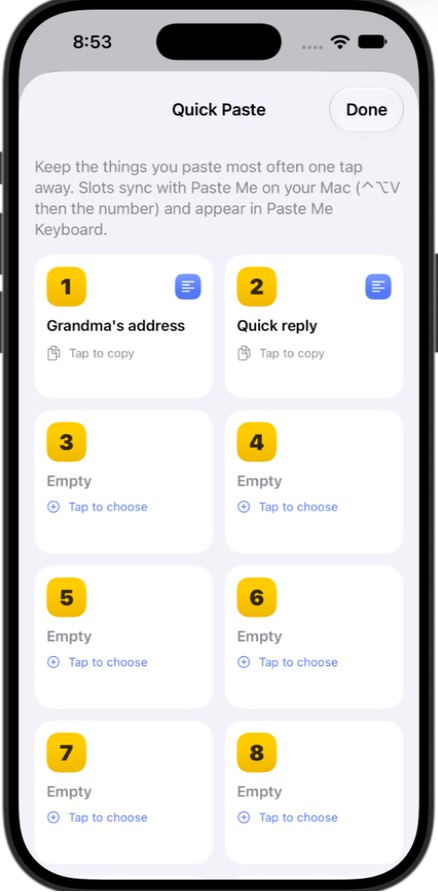
Ten slots, numbered 1 to 9 and 0, for the things you paste most. They’re shared with the Mac, where ⌃⌥V then the number pastes a slot.
- Open Quick Paste with the ⚡ button. Tap a slot to copy it, or tap an empty slot to choose an item.
- Or touch and hold any item ▸ Quick Paste Slot.
- Slots also appear in Paste Me Keyboard, and in Shortcuts (“Copy Quick Paste Slot”).
Finding things
- Search finds words anywhere in an item, its title, or the app or device it came from.
- Filter chips: All, Pinned, your pinboards, and each type (Text, Code, Links, Images, Colors, Emails, Rich Text, Files).
- From… shows only items from one app or device. Items copied on a Mac keep the app they came from (“Safari”, “Xcode”…). Items saved on an iPhone or iPad say so (“iPhone”, “iPad · Share Sheet”, “iPad · Keyboard”).
- Pinboards group items: addresses, replies, work snippets. Touch and hold a pinboard chip to rename it, recolor it or delete it.
Easy for everyone
- Simple Mode (Settings ▸ Look & Feel, or the last page of the welcome tour): bigger text, a labelled Copy button on every item, and only the essential options.
- Every text size, including the largest Accessibility sizes. Paste Me follows Settings ▸ Display & Brightness ▸ Text Size.
- VoiceOver: every item reads its type and title, with Copy, Details, Pin and Delete as actions.
- Light, Dark or System appearance, and haptic feedback you can turn off.
- A welcome tour on first launch. Replay it from Settings ▸ Help & Tips.
iPad
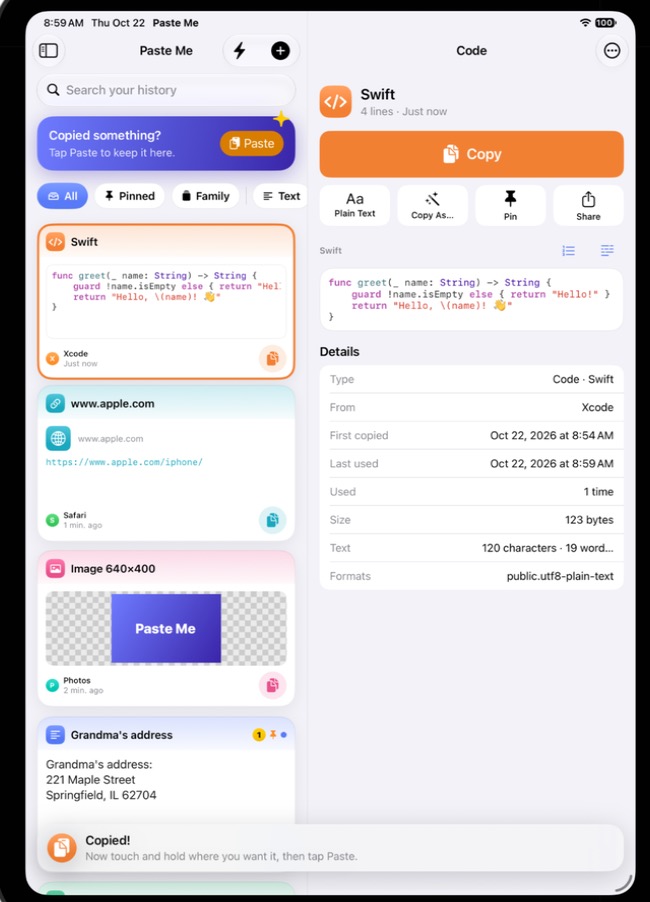
On iPad, Paste Me shows three columns: a sidebar (History, Pinned, Quick Paste, pinboards, types and sources, each with a count), your history, and the full details of the selected item. It supports Split View, Slide Over, Stage Manager and drag and drop. With a hardware keyboard, ⌘C copies the item you’re viewing, ⌘K opens Quick Paste and ⌘, opens Settings.
Code, links, images and colors
- Code: 20+ languages detected and highlighted with the Mac’s 8 themes. Indentation is kept exactly, with optional line numbers and wrapping. “Copy code with syntax colors” pastes highlighted code into Notes, Mail and Pages.
- Links: the page title and icon, when link previews are on. Tap Open Link to visit.
- Images: shown on a checkerboard (or a background you choose). Tap to zoom.
- Colors:
#hex,rgb()andrgba()values show a swatch with HEX, RGB and HSL. - Files copied on a Mac show their names. The files themselves stay on the Mac; Paste Me copies their location as text.
iCloud sync with your Mac
Turn on Settings ▸ iCloud Sync here, and Settings ▸ iCloud in Paste Me for Mac. Use the same Apple Account on both.
- History, pins, pinboards and Quick Paste slots sync through your own private iCloud database.
- Settings that make sense on both (code theme, history limits, what to save, Look & Feel) sync too. Mac-only settings, like keyboard shortcuts and the panel layout, stay on the Mac.
- On a new iPhone or iPad, Paste Me finds your iCloud settings, turns sync back on and downloads your history.
- Images and large items count toward your iCloud storage. Lower the limits in Settings ▸ History & Storage to keep it small.
History and storage
Settings ▸ History & Storage, with the same defaults as the Mac:
- Keep items for 1 day to forever (default 1 month).
- Keep at most 100 to 10,000 items, or no limit (default 1,000).
- Largest item (default 50 MB) and total size (default 1 GB). The oldest items go first.
- Pinned, pinboard and Quick Paste items are always kept.
- Export and Import your history as JSON. The file format is the same as Paste Me for Mac, so you can move a history between them.