 BrowserSearch
Every tab, every browser,
one keystroke away.
Press ⌥Space, type a few letters, hit ↩. BrowserSearch jumps straight to the tab in Chrome, Safari or Firefox, whichever window it's hiding in.
Three keys and you're there
No hunting through a row of tiny favicons or a stack of windows.
Summon
Press ⌥Space from any app. The panel opens on the screen you're looking at.
Type
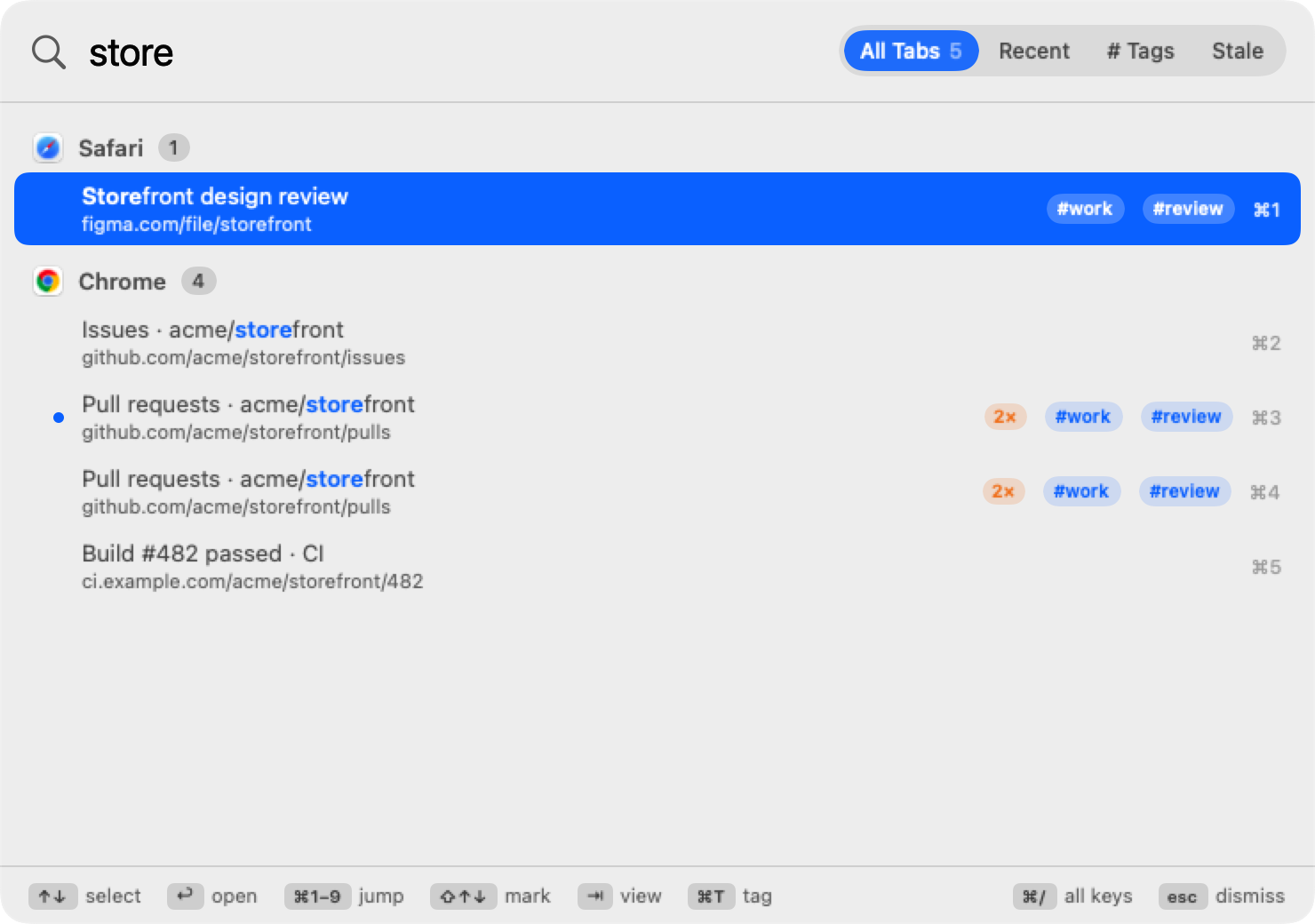
A few letters of a title or address. Results narrow as you type, still grouped by browser.
Jump
↑ ↓ then ↩, or ⌘1–⌘9 directly. The right window comes forward with the tab selected.
Built for people with too many tabs
Everything is reachable from the keyboard, and nothing gets in your way.
Organized like your Mac
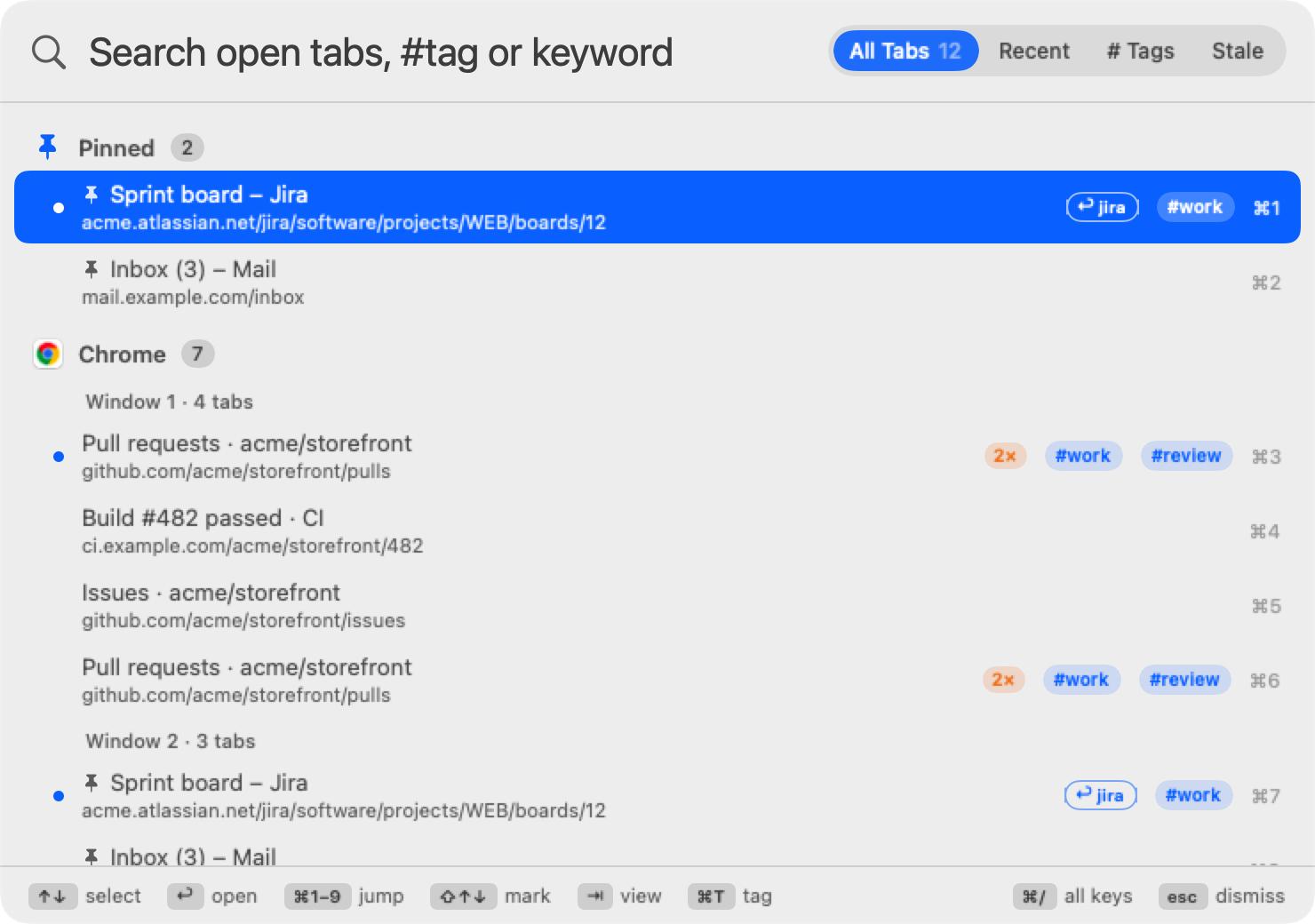
Tabs grouped by browser, then by window, with the tab each window is showing marked.
Fuzzy search
Titles and addresses. store, gh pull, or just initials: pr finds “Pull requests”.
Saved tab groups new
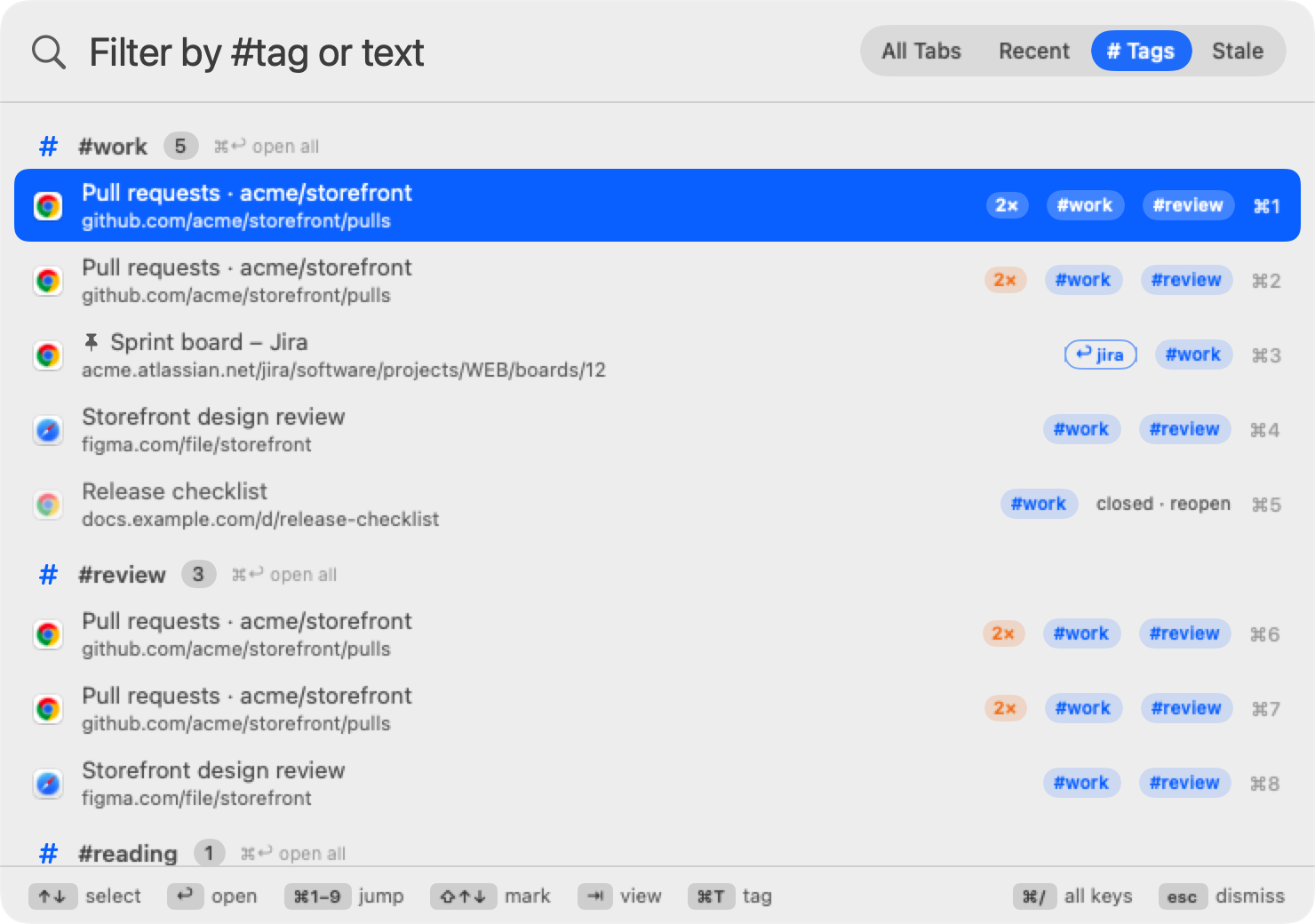
Tag tabs #work with ⌘T. ⌘↩ reopens the whole group later, even tabs you closed.
Bulk actions new
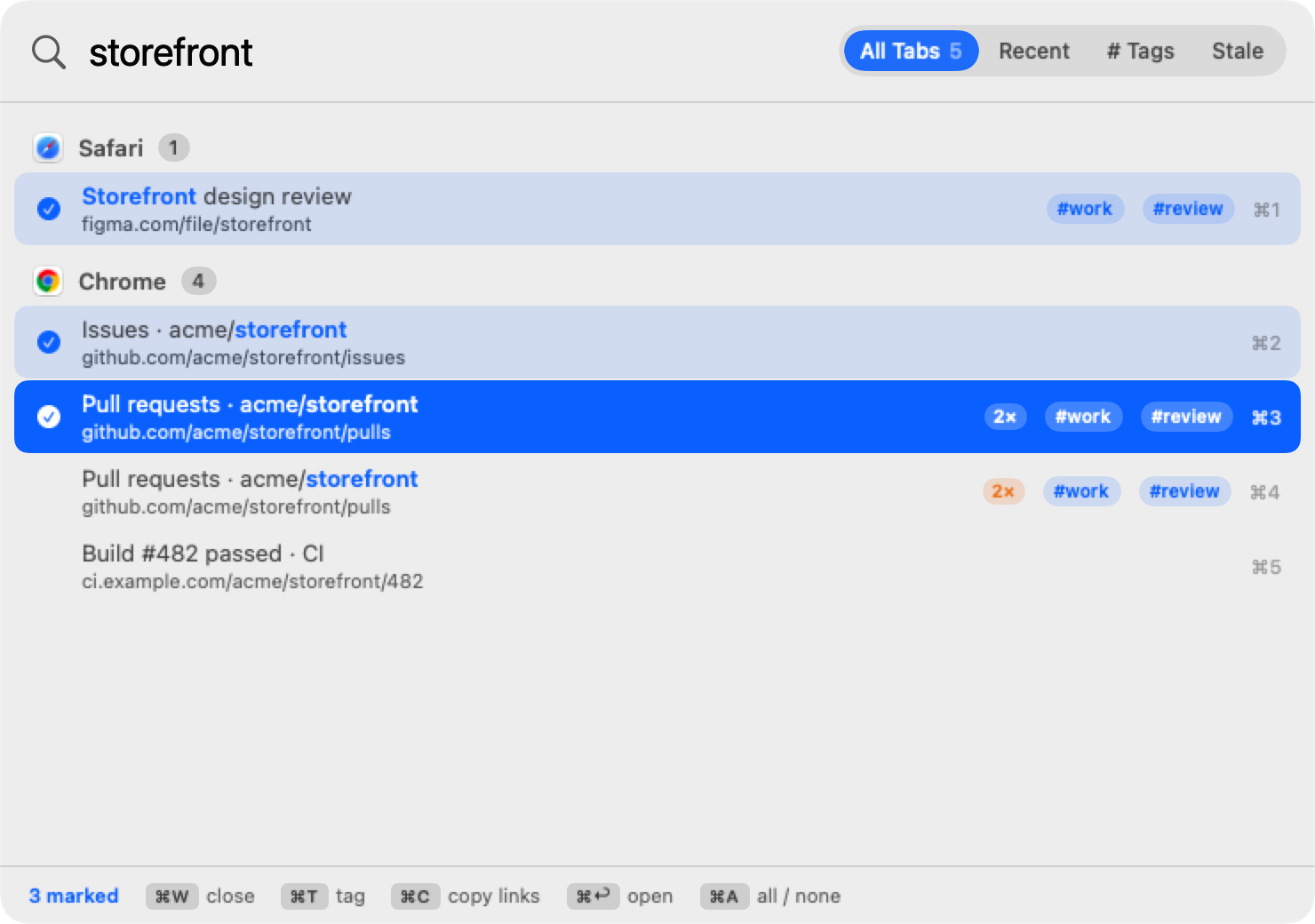
Mark tabs with ⇧↑↓ or ⌘-click, then close, tag, pin or copy them all as Markdown links.
Duplicate finder new
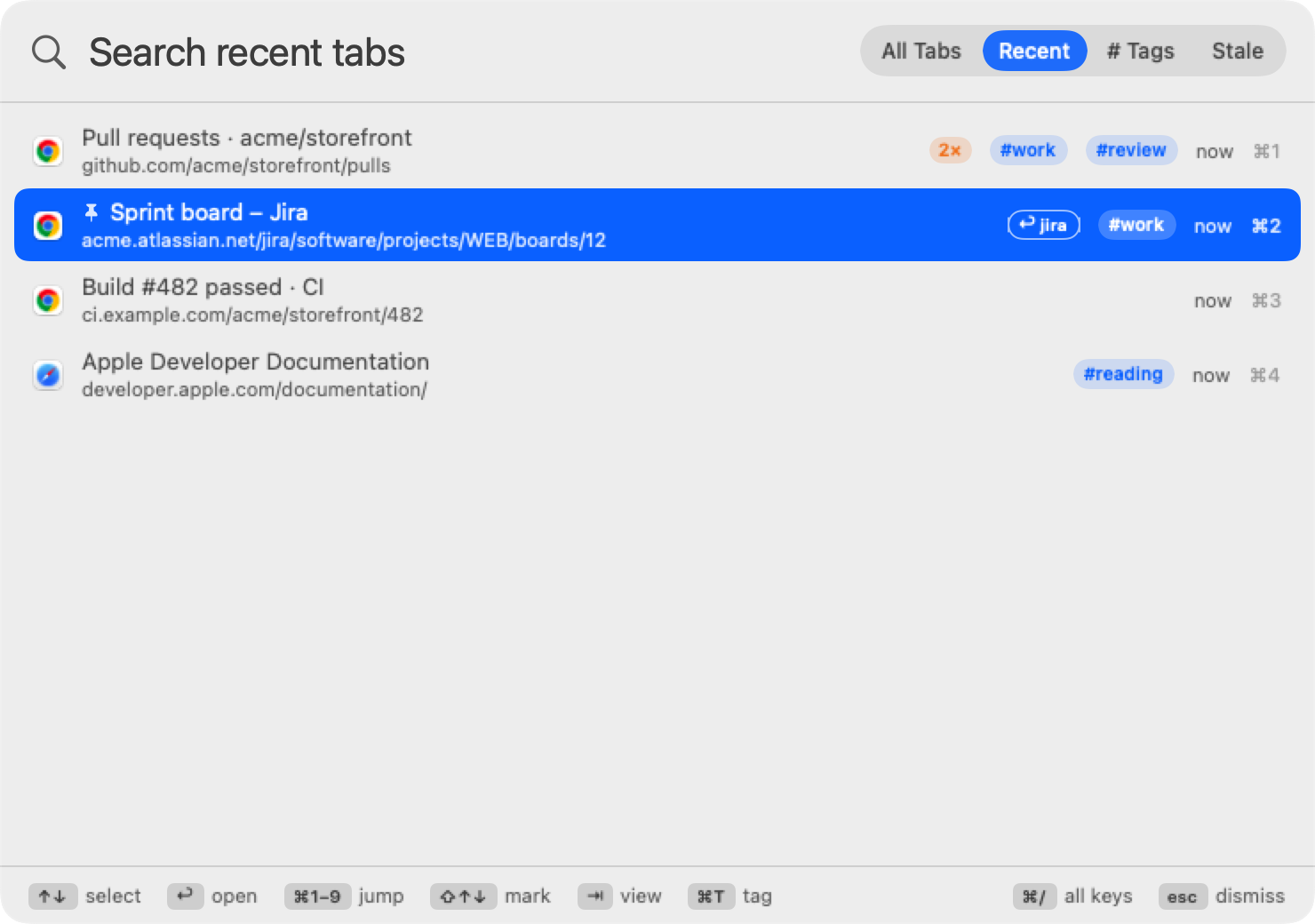
Tabs open twice get a 2× badge. ⌘D closes the extra copies.
Stale tabs new
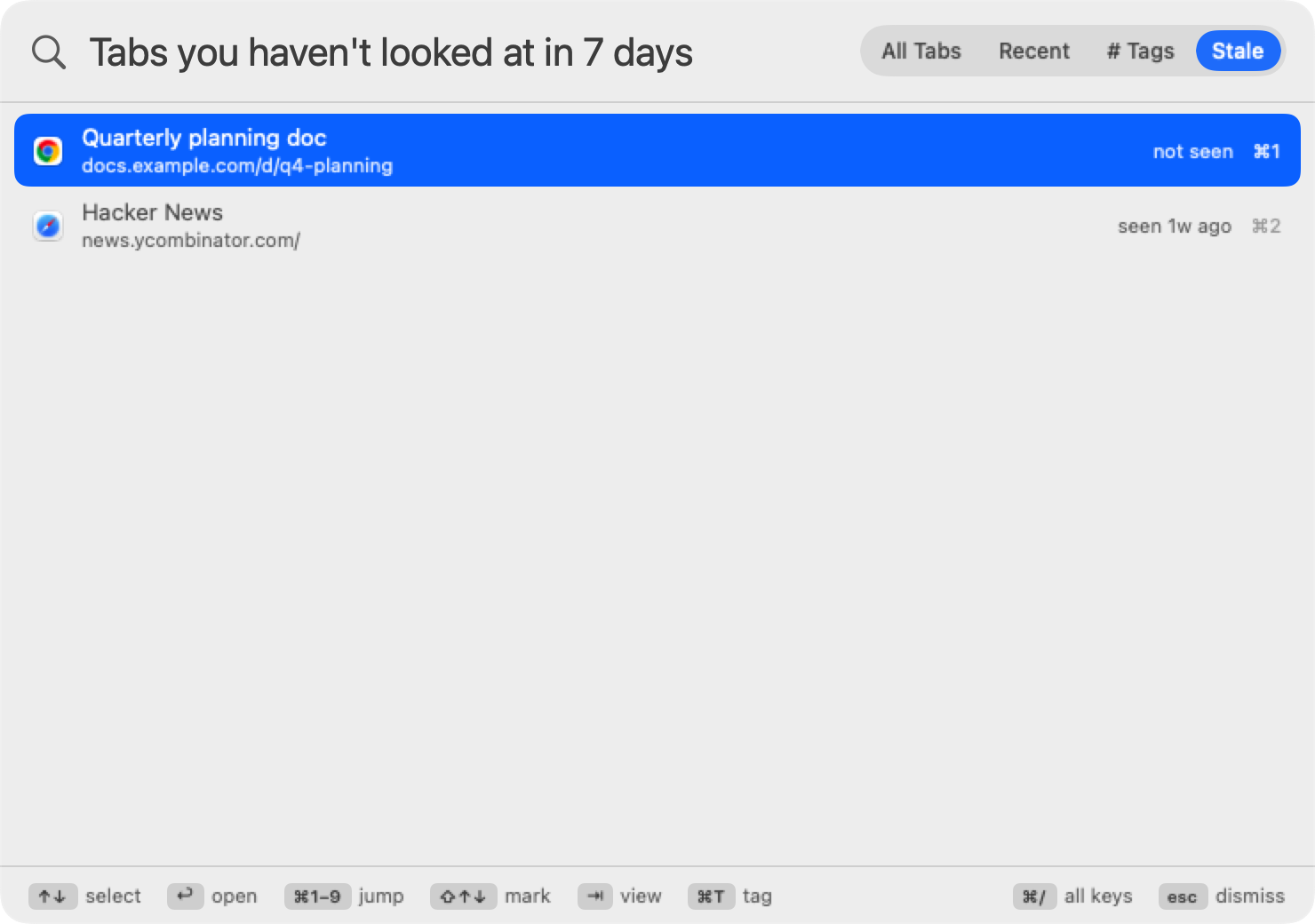
See what you haven't looked at in a week, oldest first. ⌘A ⌘W and they're gone.
Pins & keywords new
⌘P pins a tab to the top. ⌘K gives it a keyword: type jira ↩ and you're there.
Move & switch browsers new
⌘M pulls a tab into your front window. ⌘O moves it to another browser.
Previous-tab shortcut new
⌃⌥⇥ jumps straight back to the tab you used before, no panel. Again to return.
Search inside pages new
⌘F in the panel also matches the text on each page, with a snippet of where it was found.
Shortcuts & Siri new
“Find Tab”, “Open Tab Group” and “Go to Previous Tab” actions for the Shortcuts app.
Automatic site groups
Tabs from the same site group themselves in the Tags view: every GitHub tab under github, no setup.
Recent tabs
A live, most-recently-used list across all browsers. Press ⇥ to switch to it.
Jump back
Open on Recent and the previous tab is preselected: shortcut, ↩, and you're back. Like ⌘⇥ for tabs.
Number keys
⌘1–⌘9 open the first nine results instantly. ⌘↑ ⌘↓ hop between browsers.
Not open? Search the web
When no tab matches, ↩ searches the web for what you typed, in your default browser.
Shortcut conflict check
Warns when your shortcut clashes with macOS, another app's hotkey, or a launcher like Raycast, Alfred or ChatGPT.
Reopen closed tabs
Tabs you closed stay in Recent; pick one to open it again in the same browser.
Never launches browsers
Only open browsers are searched. If only Chrome is running, only Chrome is searched.
Private by design
No network access, no analytics. Recent tabs, tags, pins and keywords stay on your Mac and can be cleared.
Results narrow as you type
- Every word you type has to match, in any order.
- Exact text ranks first; matches near the start of a title beat those at the end.
- Results stay grouped by browser and window, best group first.
- Add a browser name to narrow it:
safari docs.
Your tab history, across browsers
- Newest first, with how long ago you used each tab.
- Updates on its own as you browse.
- Closed tabs can be reopened in one keystroke.
- Make it the default view in Settings for instant “jump back”.
Never touch the mouse
The bottom of the panel always shows these, so there's nothing to memorize.
Works with the browsers you use
Turn any of them off in Settings › Browsers.
| Browser | Search titles | Search addresses | Switch | Close with ⌘W |
|---|---|---|---|---|
| Google Chrome | ✓ | ✓ | ✓ | ✓ |
| Safari | ✓ | ✓ | ✓ | ✓ |
| Brave, Microsoft Edge, Vivaldi | ✓ | ✓ | ✓ | ✓ |
| Firefox direct download | ✓ | — | ✓ | — |
Stop hunting for tabs
Set your shortcut, turn on Launch at login, and every tab is a keystroke away.
Read the getting-started guide